
Setting Up Your QuickBooks File Correctly

Why your setup matters more than you think.
QuickBooks Does Not Fix Problems
QuickBooks is a tool, not a solution. The same can be said for any accounting software. If the foundation is off, the reports will be too. Most issues I see months or years later can be traced back to setup decisions that felt small at the time, usually made in a rush to get started and explore features.
Many business owners rely on default settings or skip setup entirely because they just want to move forward. That choice almost always shows up later as either lost time fixing mistakes or added cost paying someone else to clean it up.
What Setting Up a QuickBooks File Actually Means
Purchasing a QuickBooks Online subscription is only the first step toward financial clarity. The next step is setting up the company file, and that involves far more than creating a login.
Proper setup includes company details, accounting preferences, reporting structure, and how data flows through the system from day one. This is the framework your financial reports will rely on long term, and it determines whether QuickBooks becomes a helpful tool or an ongoing source of confusion.
Company Settings
Company settings are where your QuickBooks file begins to take shape. You can find this section by navigating to:
Settings (gear icon) → Your Company → Account and Settings → Company
Some settings may vary depending on your QuickBooks plan.
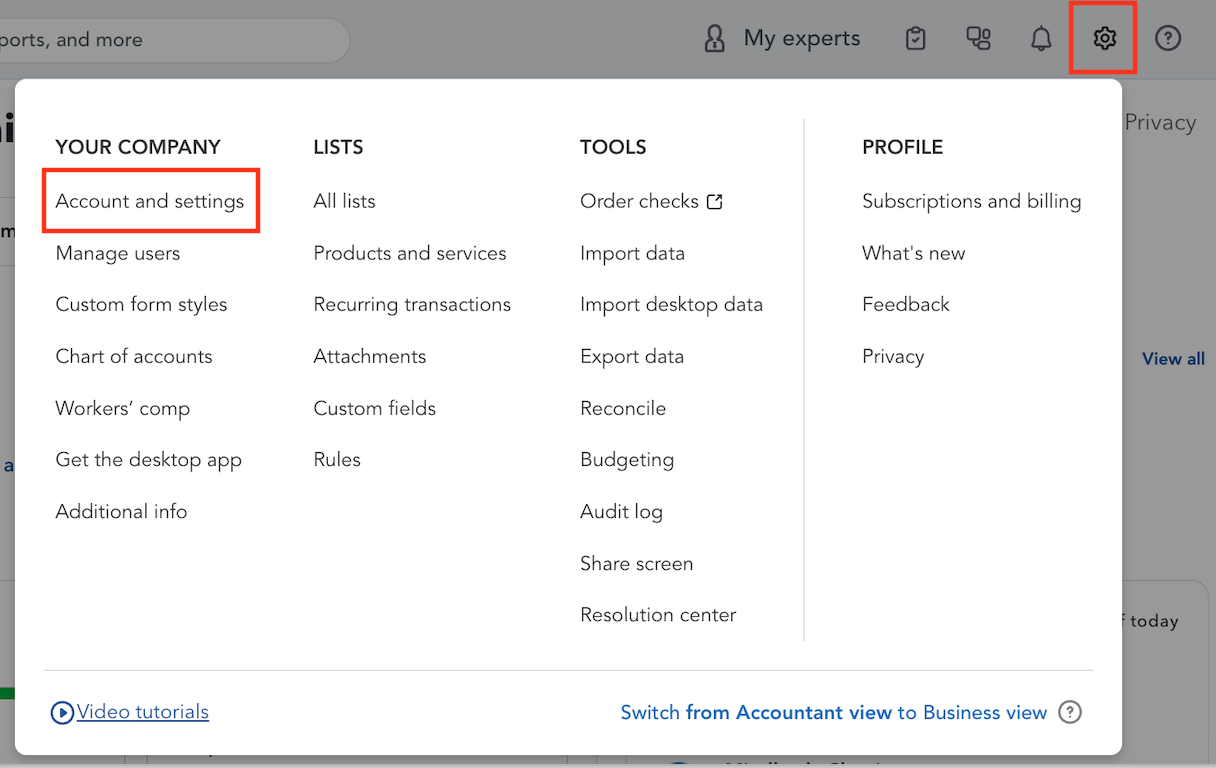
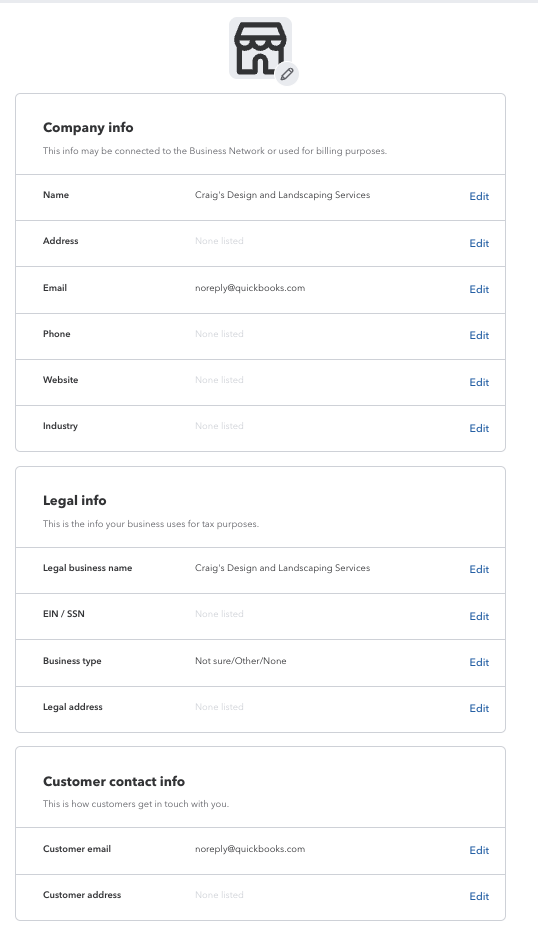
This is where you upload your logo and enter basic company information such as your business name, address, email, phone number, website, industry, and legal details. You should complete this section fully. These details flow into invoices, reports, and shared documents, and incomplete information often causes inconsistencies later.
After updating your information, select Done to save your changes.
Sales Settings
Why these choices matter more than you think
Sales settings control how you invoice, how customers pay you, and how clean your income records will be over time. Many business owners skip this section, assuming the defaults are fine. In reality, these settings directly impact cash flow, reporting accuracy, and how much cleanup is required later.
When sales settings are configured intentionally, invoicing feels simple for your customers and predictable for your bookkeeping. When they are not, you end up with inconsistent invoices, unclear payment timing, and unnecessary manual work every month.
You can find these settings under:
Settings (Gear Icon in Top-Right Corner) > Your Company: Account ant Settings > Sales
Preferred invoice terms and delivery
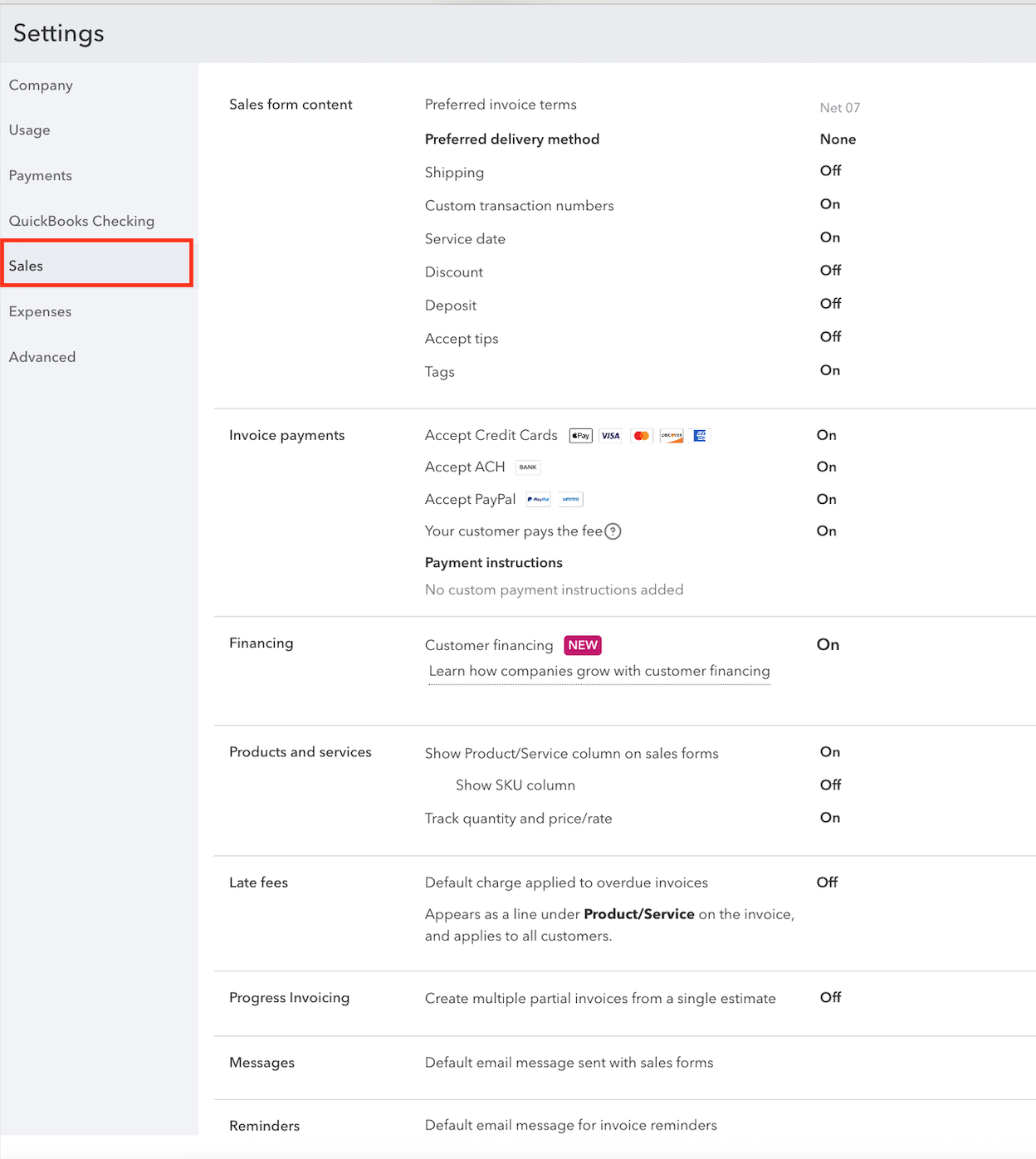
Preferred invoice terms establish when you expect to be paid. In this file, invoices are set to Net 07, meaning payment is due seven days after the invoice date. This creates clear expectations and supports healthier cash flow. Even if you occasionally offer flexibility, having a standard term keeps your books consistent.
The preferred delivery method is set to none, which means QuickBooks does not force email or print by default. This is fine as long as you are intentional when sending invoices. If you always email invoices, setting email as the default can reduce missed steps.
Sales form customization
Several form options are enabled to support clean tracking without unnecessary clutter. Custom transaction numbers and service dates are turned on, which is especially helpful for service-based businesses. Service dates allow income to reflect when work was performed, not just when an invoice was sent, which matters for reporting clarity.
Discounts, deposits, tips, and shipping are turned off. This is often the right choice for businesses with straightforward pricing. Turning off features you do not use keeps invoices clean and prevents accidental misuse later.
Tags are available for optional internal tracking without affecting financial reports. Tags can be helpful for organization, but they should never replace a properly structured chart of accounts.
Accepting payments on invoices
Online payments are enabled, including credit cards, ACH, and PayPal, with the option for customers to pay processing fees. This reduces friction for clients while protecting your margins. Faster payment options often lead to faster collections, which directly impacts cash flow.
Payment settings affect how deposits flow into your bank account and how fees are recorded. When configured correctly, QuickBooks handles this cleanly in the background.
Products and services tracking
The Product or Service column is shown on sales forms, with quantity and price tracking enabled. This allows invoices to feed cleanly into income reporting without overcomplicating inventory.
SKU tracking is turned off, which is appropriate for most service-based businesses and many small product businesses that do not manage inventory inside QuickBooks. This balance keeps income detailed enough to be useful without adding unnecessary complexity.
Late fees, progress invoicing, and financing
Late fees and progress invoicing can be helpful in the right situation, but turning them on without a clear process often creates confusion.
Customer financing allows eligible customers to pay over time through QuickBooks. This can support sales, but it should be used intentionally and reviewed regularly to ensure it aligns with your pricing and cash flow goals.
Messages and reminders
Default invoice messages and reminder settings are available but not customized here. This is an often-overlooked opportunity. Clear, professional messaging and automated reminders reduce awkward follow-ups and improve on-time payments without extra effort.
Expense Settings in QuickBooks Online
Where accuracy is either built in or slowly lost
Expense settings control how money leaving your business is tracked, assigned, and reported. These settings quietly determine whether your expense data supports clean reporting or creates confusion when you try to understand profitability.
Many bookkeeping issues stem from expense settings that were turned on without a purpose or turned off when they were actually needed. Getting this right early saves significant cleanup later.
Settings (gear icon) → Your Company → Account and Settings → Expenses
Bills and expenses setup
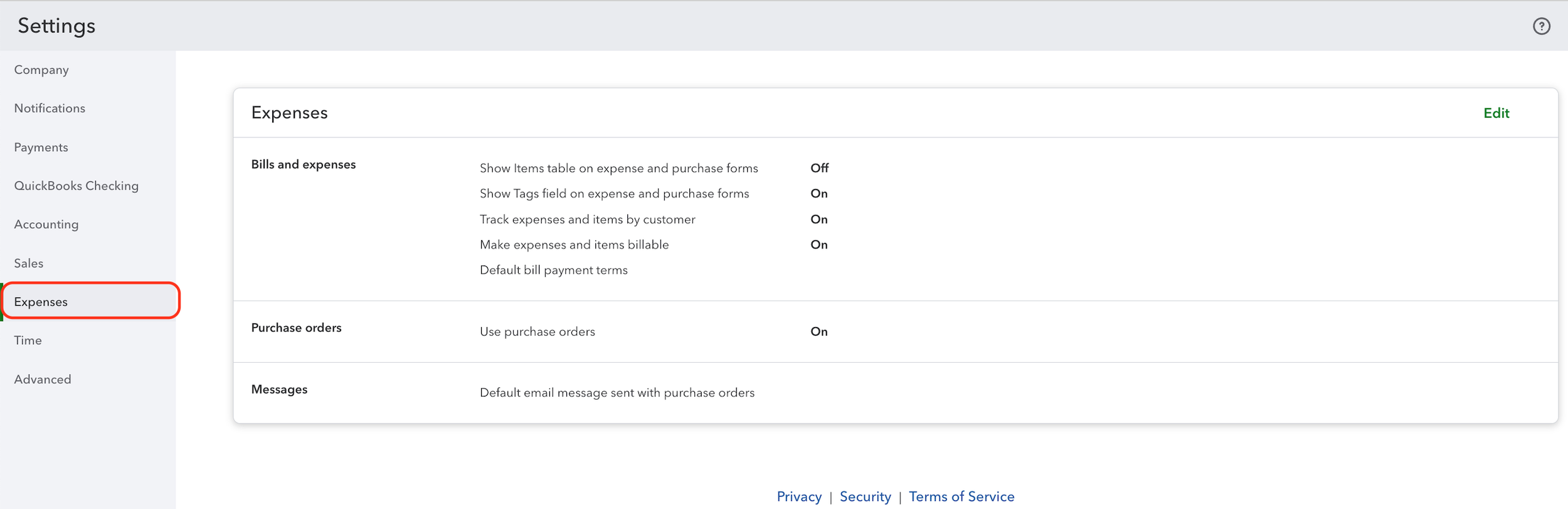
When the items table is enabled on expense and purchase forms, expenses can easily be recorded inconsistently. For most businesses that categorize expenses directly to accounts, the category-based view is cleaner and more reliable.
Tags allow optional internal labeling without affecting financial statements. They can be useful temporarily, but they should never replace proper account structure or customer tracking.
Tracking expenses by customer is enabled, which allows costs to be associated with specific clients or jobs. This is critical for understanding profitability or recovering costs later.
Billable expenses allow costs to be passed through to customers or used internally to measure job profitability. This feature should only be enabled if you have a clear process for assigning expenses and reviewing billable charges regularly.
Default bill payment terms help manage cash flow and keep accounts payable predictable, even if they are not used consistently.
Purchase orders
Purchase orders provide control over spending before money leaves your account. They create visibility and accountability by documenting approvals before bills or expenses are entered.
This feature is especially valuable for businesses with recurring vendors, inventory purchases, or growing teams. Purchase orders also help track quotes and requested purchases before vendor billing occurs.
Expense messaging
Default email messages for purchase orders can be customized here. While this may seem minor, consistent and professional messaging reduces back-and-forth with vendors and sets clear expectations.
Advanced Settings in QuickBooks Online
The foundation everything else sits on.
Advanced settings control how your entire QuickBooks file behaves behind the scenes. This is where accounting rules, reporting structure, automation, and safeguards live.
These settings should be reviewed carefully during setup and changed rarely. Adjusting them midstream can affect historical data, reporting consistency, and transaction behavior going forward.
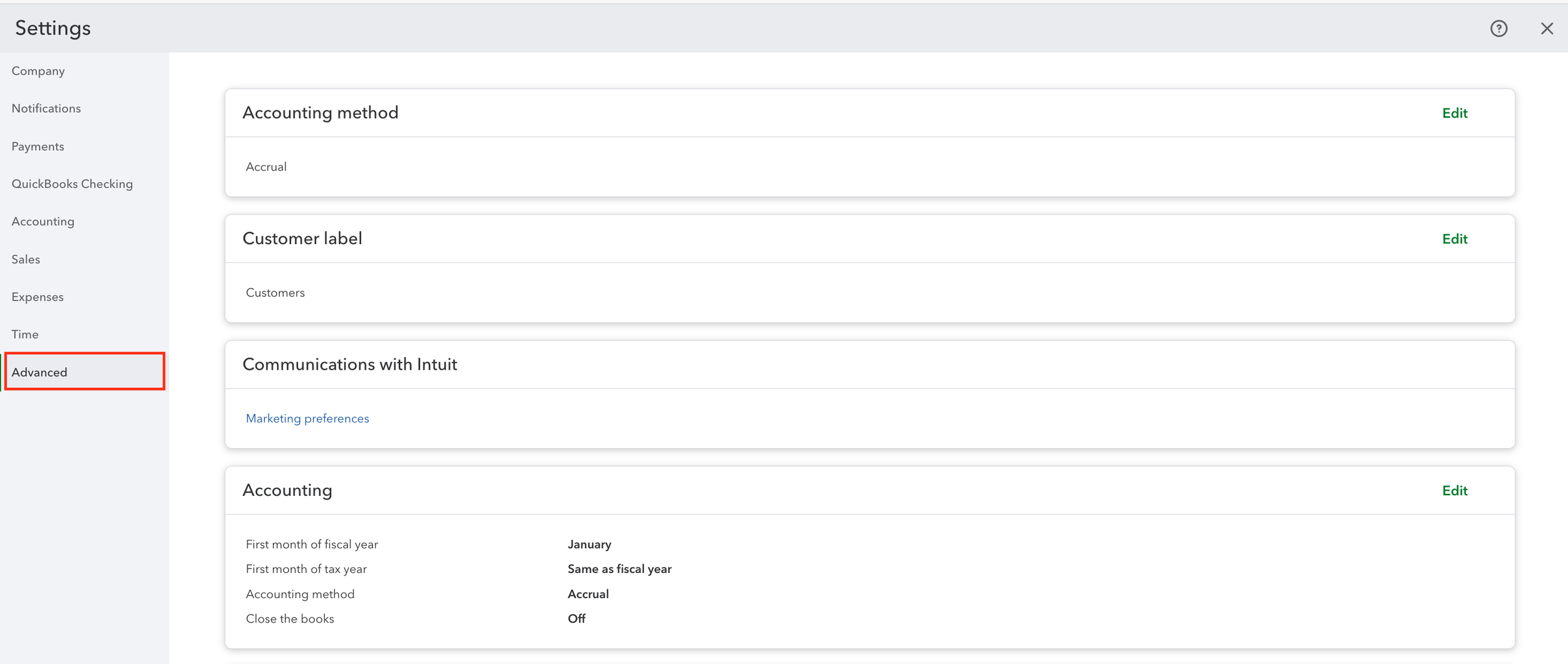
Settings (Gear Icon in Top-Right Corner) > Your Company: Account ant Settings > Advanced
Accounting method and fiscal settings
This file uses the accrual accounting method, meaning income and expenses are recorded when earned or incurred, not when cash moves. Accrual accounting provides a clearer picture of profitability and is the standard when working with a bookkeeper or CPA.
The fiscal year begins in January, with the tax year aligned. This is typical for most small businesses and keeps reporting straightforward.
Closing the books is currently turned off. This safeguard prevents changes to prior periods once reports are finalized. While many businesses leave this off early on, it becomes increasingly important as your business grows or multiple users access the file.
Chart of accounts controls
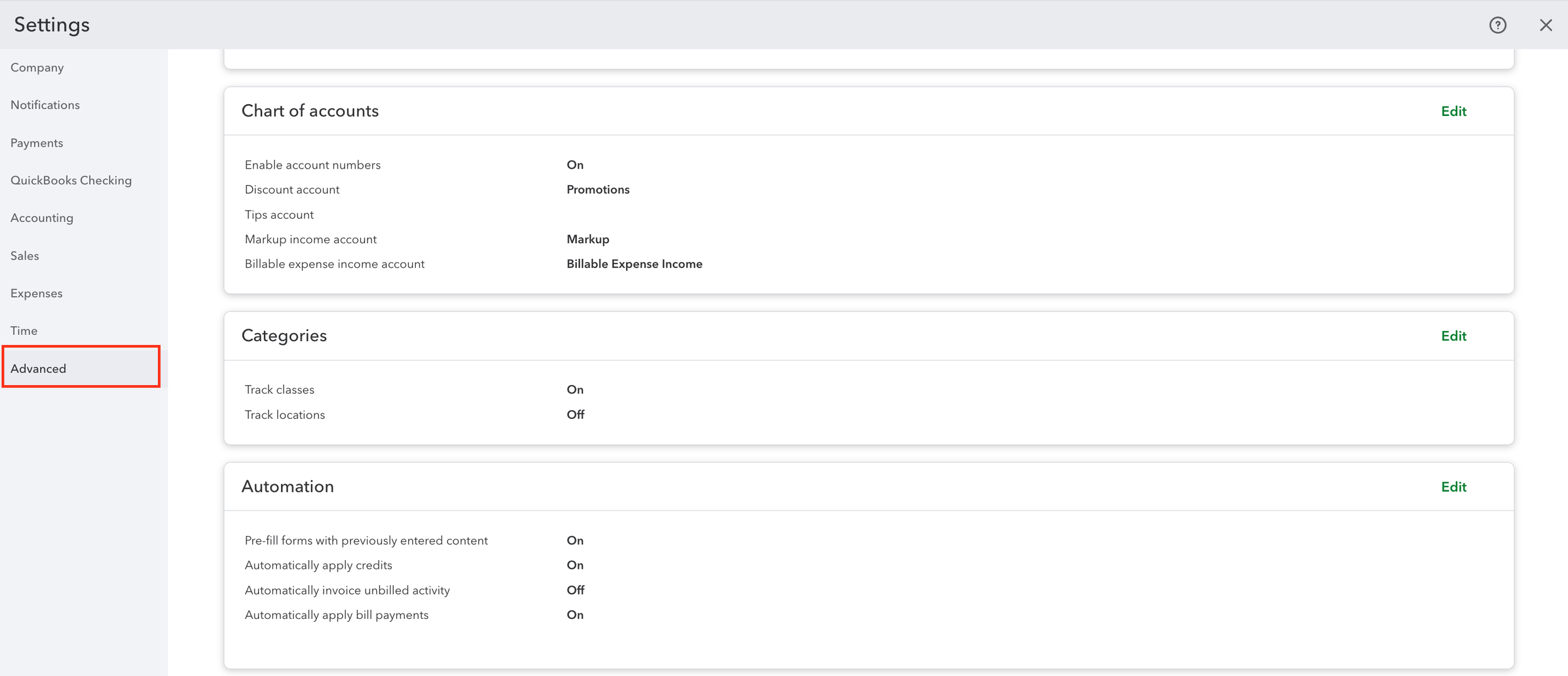
Account numbers are enabled to support structured reporting as the chart of accounts grows. Default accounts for discounts, tips, markup, and billable expense income are clearly defined to keep special transactions consistent.
Without these settings, reports quickly become harder to interpret and reconcile.
Categories, classes, and locations
Class tracking is enabled to allow internal segmentation of income and expenses. Classes are powerful when used intentionally but should never replace a strong chart of accounts.
Location tracking is turned off, which is appropriate unless a business operates across multiple physical locations or divisions.
Automation settings
Automation is enabled selectively. Forms pre-fill with prior entries, credits apply automatically, and bill payments apply automatically to reduce manual work while maintaining accuracy.
Automatic invoicing of unbilled activity is turned off to prevent invoices from being created without review. This control is especially important for service-based businesses.
Automation should support your workflow, not override it.
Projects and financial tracking
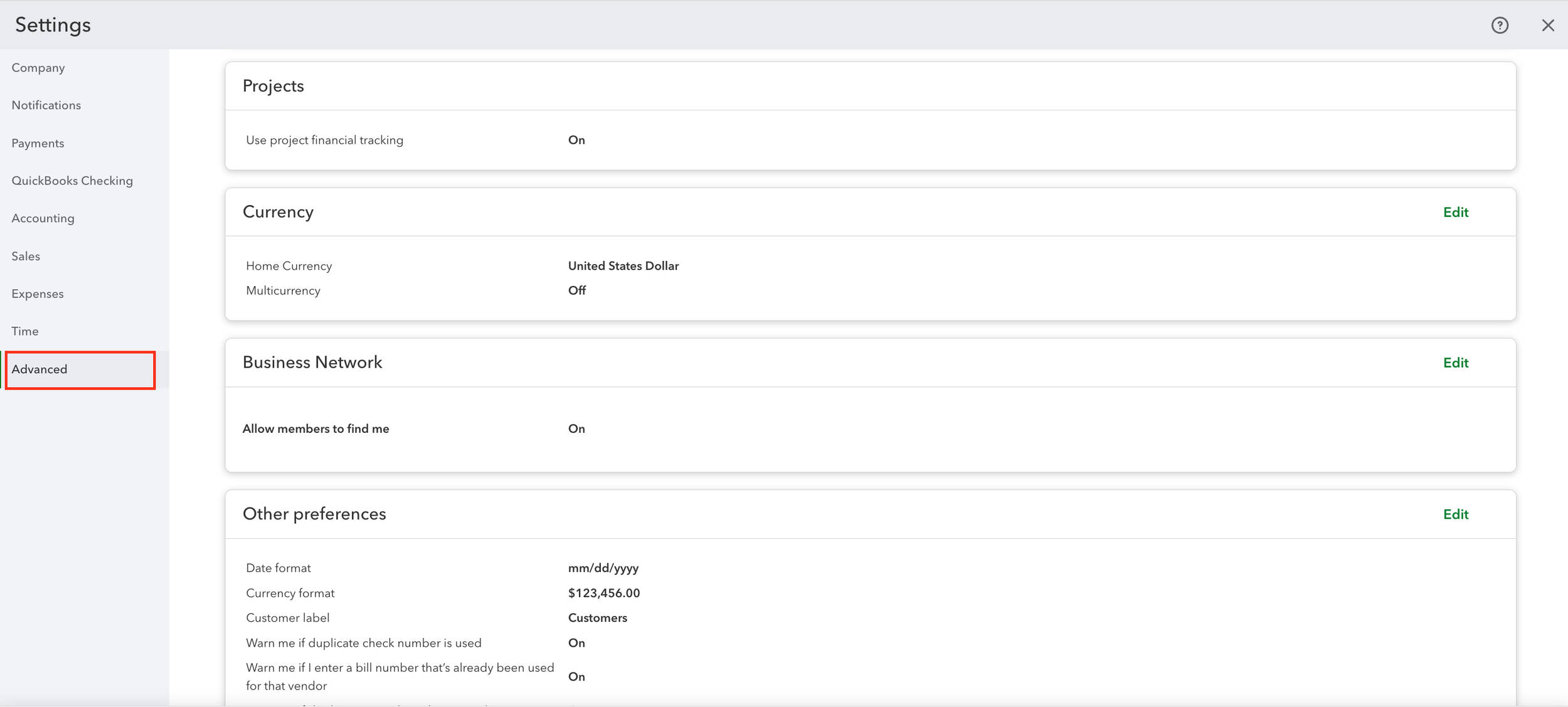
Project tracking is enabled, allowing income and expenses to be grouped by job or client. When paired with proper expense tracking and invoicing, projects provide meaningful insight into profitability.
Currency and formatting
The home currency is set to U.S. dollars, with multicurrency turned off. Multicurrency should only be enabled when absolutely necessary, as it adds complexity and cannot be undone.
Date and currency formats are standardized, and duplicate warnings for checks and vendor bills are enabled to prevent common data entry errors.
If you’d like a heads-up when a new post goes live, you can subscribe below.
No pressure and no frequent emails. Just occasional updates when something new is published.
Final Thoughts
Setting up QuickBooks correctly is not about perfection. It is about intention.
When these settings are configured thoughtfully, your financial reports stay clean, consistent, and trustworthy as your business grows. When they are ignored, even good bookkeeping habits can break down under the weight of a poorly designed system.
A strong QuickBooks setup does not just support compliance. It supports clarity, confidence, and better decisions.